
Images, Galleries, Logos
Images
Definition
“Images” include supporting content imagery, logos, icons, graphics, and other visual assets used across the site. High-quality images are essential to modern design, brand credibility, and conversion. Hibu One Smart Sites prioritize clarity, consistency, and professional presentation when using both client-supplied and stock images.
Fair Use Rules for Images
Hibu One Smart Sites apply specific fair use standards for image placement, galleries, and quality.
- Photo Galleries
- Core service/product page: Up to 1 gallery per page.
- Main gallery page: May include up to 10 galleries.
- Each gallery may contain up to 100 images.
- If a client supplies 3+ images for a service (e.g., kitchens, roofing, bathrooms):
- Those images will appear on the associated service page.
- They will also be placed into a unique gallery on the main gallery page.
- Image Quality & Legacy Assets
- Older assets from narrow layouts (e.g., 960px) often appear blurry on modern Smart Sites. These may not be carried over.
- Lower-quality images may be used in secondary sections or galleries but not in hero placements.
- Designers should substitute high-quality stock or client-supplied replacements where possible.
- Mandatory transparency: If client images are excluded from hero or other prominent placements, the designer must add an assumption and ensure DSC communicates it to the client.
Legacy Images
- Older assets from narrow layouts (e.g., 960px designs) may appear blurry or stretched on modern 1200px+ layouts.
- Such images may not be carried over. Instead:
- We will use high-quality, current images that fit the design.
- Clients may supply updated, higher-resolution versions.
- Lower-quality images may still be used in secondary sections or galleries, but not as hero images.
- Mandatory: If a client-supplied image is excluded from the hero due to quality, the designer must log a detailed assumption, share with the DSC, and ensure it is included in client communications. Transparency is required.
- Options for legacy images:
- Use in galleries (if grouped, see below).
- Use in secondary placements where scaling or cropping issues are less visible.
- Exclude from site with documented reasoning.
Hero Images
- Each page must use a unique hero image to distinguish navigation.
- Recommended minimum size: 1920 × 1280 px (full-width hero), safe zone applied.
- Avoid images with overlaid text, signage, or people looking directly into the camera.
- For transparent header designs, the top ¼–â…“ of the image must be uncluttered to preserve readability. Stock images are preferred in most cases.
- Hero images must support readability of overlay text and CTAs.
- Poor client-supplied images (wrong size, orientation, composition) must be relocated to body content or a gallery.
Photo Galleries
Hibu Policy
The
Photo Gallery module allows for multiple
client-supplied images to be displayed in a single, visually engaging format. Galleries are used to highlight real examples of a client’s work, products, or services.
Stock images are not permitted within photo galleries.
Photo galleries should be built to enhance user experience, maintain optimal page performance, and follow standard Smart Website structure guidelines.
- Core pages (Service/Product pages): May include up to one (1) photo gallery per page.
- Main Gallery page: May include up to ten (10) separate galleries.
- Gallery size: Each gallery may contain up to 100 client-supplied images.
- Service-specific images:
- If a client provides three (3) or more images tied to a specific service (e.g., roofing, kitchens, bathrooms), those images will appear in:
- A gallery on the associated service page, and
- A dedicated gallery on the main Gallery page.
- Note: Overuse of large image sets or galleries on multiple pages can negatively impact page speed and search performance. Google prioritizes websites that display high-quality, relevant content over quantity.
Definition
The Photo Gallery widget displays a collection of images that can be opened in a lightbox view or linked to other site elements. Images may link to internal pages, anchors, popups, email addresses, or external URLs.
Each image supports a
title,
description, and
alt text for accessibility and SEO. The widget can also connect to a
Professional Instagram feed (Business or Creator account) to automatically display client imagery.
For setup details, see Connect a Professional Instagram Feed.
Content Editor
The Content Editor manages all images, text, and link settings within the gallery.
To access:
- Right-click the widget and select Edit Content, or
- In Flex Mode or Editor 2.0, click the element and select Edit Content from the floating menu.
Gallery Setup Options
- Enable links on gallery images: Toggles link functionality for each image.
- When enabled, the lightbox view is disabled.
- If no link is applied, clicking the image does nothing.
- Connect Instagram: Links the gallery to a Professional Instagram account (images only; videos are not displayed).
- Add Image: Add one or multiple images at once.
- Select from existing images.
- Click Full View to open the Image Picker.
- Use the plus icon to upload new images.
Design and Image Treatment
The designer may use the tools available within the Photo Gallery widget to best showcase the imagery provided by the client. These tools allow designers to:
- Crop or adjust images to improve visual composition.
- Reposition the focal point of an image to highlight the subject.
- Add optional design elements such as a headline, text overlay, or button, if appropriate for the gallery or requested by the client.
The
placement and styling of these design elements are at the discretion of the designer, based on the client’s imagery, brand tone, and desired visual impact. Duda offers several
layout options for galleries, and designers are not limited to the default layout provided in a section or PBN. The selected layout should complement the type and orientation of the client’s images.
- Consistency Note - While galleries may vary by page or purpose, any galleries that include text, buttons, or overlays should maintain a consistent design approach — including spacing, typography, and element placement — within the same website. Consistency ensures a unified look and feel while still allowing flexibility across pages.
Spacing, image alignment, and other stylistic choices are considered
designer preferences and may be adjusted as needed to best present the client’s imagery. These decisions should always prioritize:
- Image clarity and professionalism
- Page performance and load speed
- Overall visual harmony with the site’s design
Performance and SEO Notes
- HwP Lazy Loading optimizes page speed by deferring offscreen image loads.
- Above-the-fold images are marked as important and load immediately.
- Remaining images load after the page renders or as they scroll into view.
- This improvement, introduced in January 2019, contributes to a 5–10% improvement in Google Lighthouse scores.
- Grouping images by theme or service improves user navigation and visual impact.
- Avoid duplicating identical galleries across multiple pages — this may dilute SEO value and confuse indexing.
Instagram Feed
The Photo Gallery widget can display images from a connected Professional Instagram account (Business or Creator). This option allows clients to automatically feature recent social posts directly on their website.
- Only image posts will display; videos and reels are not supported.
- The connection must use a Professional Instagram account — personal accounts are not eligible.
- The feed updates automatically, reflecting the latest Instagram images.
- This feature is intended for clients who regularly maintain an active, professional-quality feed.
Headline
text
Logos / Badges
- Logos and accreditation/affiliation badges must be placed in the alloted row in the footer section
- Do not place a single/lone logo in the badge row:
- If only one is supplied, add to the footer column with business hours.
- On alternate footers, place on the
Contact Us page underneath social icons

Rules & Guidelines
- Placement: Logos/badges are displayed in the assigned section above the footer.
- Alt Text: Every logo/badge must include descriptive alt text.
- Consistency: Normalize logos of varying shapes/sizes by placing them on a square canvas with 15–20px whitespace for a uniform appearance.
- Quality:
- If a logo appears pixelated or blurred, confirm placement size, check for higher-resolution sources (Google search or resource library), and replace both desktop and mobile assets for consistency.
- If a high-quality replacement is unavailable, keep the best available file — but document it in assumptions if it impacts quality.
- Linking: Enable logo links only when required (e.g., accreditation site).
- Apply zoom hover only to logos with links.
- Missing Logos / Badges
- Do not create text-based logos or badges as substitutes.
- If a client-supplied logo/badge cannot be found (and is not available in the resource library or through a verified high-res source), add the following assumption:
- “Assumption: Logo/Badge unavailable, not added.”
- Do not place a single lone logo/badge in the footer row. Instead:
- If there is only one, move it to the footer column with business hours.
- If using an alternate footer, place the lone logo/badge at the bottom of the Contact Us page content.
Client Expectation Note
Logos and badges may be standardized for consistent display (square canvas, spacing, etc.). This may result in slight differences from the original file, but ensures a clean and professional presentation.
Logos / Badges
- Logos and accreditation/affiliation badges must be placed in the alloted row in the footer section
- Do not place a single/lone logo in the badge row:
- If only one is supplied, add to the footer column with business hours.
- On alternate footers, place on the
Contact Us page underneath social icons

Rules & Guidelines
- Placement: Logos/badges are displayed in the assigned section above the footer.
- Alt Text: Every logo/badge must include descriptive alt text.
- Consistency: Normalize logos of varying shapes/sizes by placing them on a square canvas with 15–20px whitespace for a uniform appearance.
- Quality:
- If a logo appears pixelated or blurred, confirm placement size, check for higher-resolution sources (Google search or resource library), and replace both desktop and mobile assets for consistency.
- If a high-quality replacement is unavailable, keep the best available file — but document it in assumptions if it impacts quality.
- Linking: Enable logo links only when required (e.g., accreditation site).
- Apply zoom hover only to logos with links.
- Missing Logos / Badges
- Do not create text-based logos or badges as substitutes.
- If a client-supplied logo/badge cannot be found (and is not available in the resource library or through a verified high-res source), add the following assumption:
- “Assumption: Logo/Badge unavailable, not added.”
- Do not place a single lone logo/badge in the footer row. Instead:
- If there is only one, move it to the footer column with business hours.
- If using an alternate footer, place the lone logo/badge at the bottom of the Contact Us page content.
Client Expectation Note
Logos and badges may be standardized for consistent display (square canvas, spacing, etc.). This may result in slight differences from the original file, but ensures a clean and professional presentation.
Before/After Image Widget
- Displays two images in a slider for visual comparison.
- Best for services with clear transformations (e.g., lawn care, roofing, remodels).
- Limitations:
- Avoid if “before” and “after” images differ in angle, lighting, or quality.
- Avoid if labels/text are already embedded in the images (causes clutter).
For interactive Before/After comparisons,
Before/After Image Widget section
Favicon and Social Network Image
Definition
Favicons and Open Graph images are site icons that support branding and improve user experience. A favicon appears in browser tabs, bookmarks, and search engine results pages (SERPs), while an Open Graph image appears when a site link is shared on platforms such as Facebook, LinkedIn, or iMessage.
Hibu One Smart Site Rules
Favicon
- A favicon is included by default on every Hibu One Smart Site.
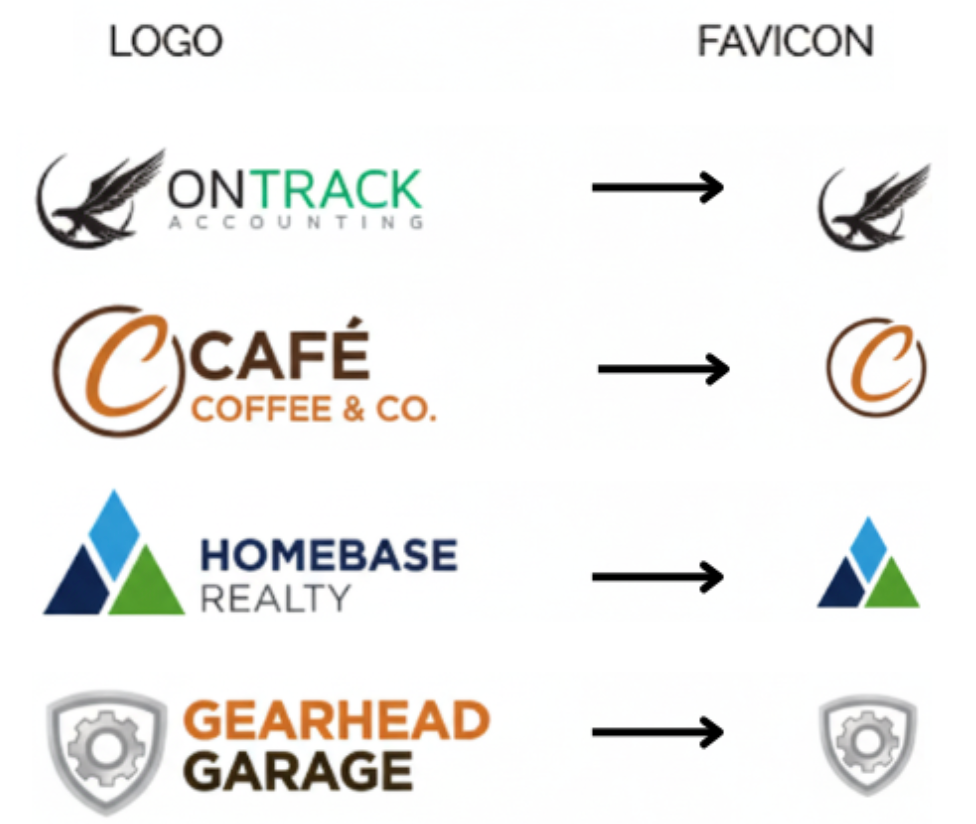
- The favicon will usually be created from the client’s logo (or a simplified part of it) for best branding.
- If the logo is not appropriate for use (too much text, too much detail, unrecognizable, etc.), a generic icon may be used instead. It is expected that the designer update the icon to match one of the client’s brand colors.
- If the client supplies their own favicon, it must be at least 16 × 16 px.
- Accepted file types: .ico, .png, .jpg/.jpeg.
- Hibu will not edit client-supplied images.
- Note: Favicons will always display as a
square, which can cause vertical or detailed images to become unrecognizable.

Open Graph Image (Social Sharing)
- Every Hibu One Smart Site includes a default Open Graph (OG) image for social sharing.
- Recommended size: 1200 × 630 px.
- Typical choices include:
- Client’s logo
- A truck, storefront, or team photo
- The homepage hero image
- Another strong image that represents the business
Page-Specific Overrides
- A page-specific OG image can replace the default.
- This image appears when a page link is shared on platforms like Facebook, LinkedIn, or iMessage.
- Example: A restaurant may set a photo of its signature dish to appear when its Menu page is shared.
Client Submissions
- Clients may provide their own OG image if it meets the size requirement.
Note: Open Graph images may also display in
iMessage previews on iPhones. They are not consistently shown in Android SMS apps, though some messaging platforms (e.g., WhatsApp, Messenger) may display them.

Headline
This is paragraph text. Click it or hit the Manage Text button to change the font, color, size, format, and more. To set up site-wide paragraph and title styles, go to Site Theme.