
Page Removal & Deactivation (Post-Launch)
Page Removal & Deactivation (Post-Launch)
Effective Date: February 19, 2026
Last Updated: February 19, 2026
Hibu Policy
When a client requests the removal or deletion of an existing page after the site has gone live, the page must not be permanently deleted. Instead, the page must be formally deactivated using the standardized removal process outlined below. This protects SEO equity, prevents 404 errors, and preserves the page for potential future reinstatement.
This policy applies only to live sites. It does not apply during pre-launch build.
Purpose / Why It Matters
Deleting a live page can create:
- 404 errors
- Loss of indexed authority
- Broken backlinks
- Negative SEO impact
This process ensures:
- No broken URLs
- No unnecessary loss of ranking value
- No permanent loss of content
- The ability to quickly restore the page if needed
The page is retired — not erased.
Core Rule
We do not delete live pages. We rename the page, remove it from navigation, move it to the bottom of the root structure, and apply a 301 redirect from the original URL to the homepage. That is the standard.
Required Post-Launch Removal Process
Follow these steps exactly when removing a live page:
Step 1: Rename the Page
- Update the internal page name to clearly indicate removal.
- Add “removed-mmddyr” in front of the page name.
- Example:
- before - AC Repair
- after - removed-021926-AC Repair
This ensures the team can immediately identify inactive pages within the CMS.
Step 2: Update the Page Slug
- Copy existing slug (ac-repair)
- Don't forget to copy!
- Add to existing slug "removed-", as in "removed-ac-repair"
- This allows us to keep the page and add a 301 redirect
Step 3: Move the Page to the Bottom of the Root Directory
- Drag the page to the last position in the left-hand page tree.
- It must sit below all active pages.
Removed pages must not remain intermingled with active content.
Step 4: Set Page to Draft (IMPORTANT)
- Setting the page to Draft removes it from dynamic navigation and applies no-index, preventing search engine visibility.
- When a mega menu is present, DPS/Amends needs to manually remove from either the top level nav or from mega menu.
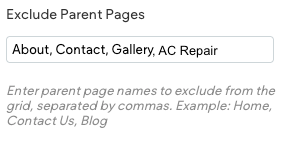
- If mega menu is added via the widget, DPS/Amends will need to add page name to Exclude Parent Page
Step 5: Apply a 301 Redirect
- Go to URL Redirects.
- Create a redirect from the page’s original URL (before renaming) -- what you copied in Step 2
- Redirect it to the homepage.
This step prevents 404 errors and preserves existing traffic or backlinks.
The redirect must reference the original pre-modification URL. Redirecting the modified “removed-” slug is incorrect and will create unnecessary redirect chains.