
Catalog Overview Page
Catalog Overview Page
Effective Date: February 1, 2026
Last Updated: February 7, 2026
Hibu Policy
Hibu One Smart Sites may include Catalog Overview Pages when a client’s product offering is too large, complex, or category-driven to be represented through individual inventory items alone.
Catalog Overview Pages provide a
high-level view of a client’s offerings and route users to detailed catalogs, third-party resources, or contact-driven next steps, rather than listing individual products.
To maintain quality, performance, and production consistency, the following rules apply:
- Catalog Overview Pages are built using the Photo Gallery widget
- Each gallery card (a single image-based item within the Photo Gallery widget) represents one product category, not an individual product
- The maximum number of gallery cards per site is 50, shared across all Inventory Pages and Catalog Overview Pages
For additional context, see:
Inventory / Product Page and
Catalog Overview Pages vs. Inventory / Product Pages
Catalog Overview: At-a-Glance
| Rule | Requirement |
|---|---|
| Purpose | High-level representation of product categories |
| Card type | Category-level only (not individual products) |
| Build method | Photo Gallery widget |
| Max gallery cards | 50 total product categories |
| Detail level | Summary only; no item-level specs |
| CTA behavior | Required; routes to PDF, external catalog, or contact |
| Ecommerce | Not supported on-site; off-site links allowed |
Definition
A Catalog Overview Page is a standalone utility page used to represent a client’s product offerings at a category level, rather than listing individual inventory items.
Each gallery card represents a
single product category (for example: Tires, Batteries, Floor Mats), not a specific product, SKU, or variation.
Catalog Overview Pages are intended to:
- Summarize what types of products a business offers
- Provide high-level context around brands, options, or use cases
- Route users to client-provided catalogs, third-party external sites, or contact-driven next steps
Catalog Overview Pages must not be used to:
- Display individual products
- Bypass Inventory Fair Use limits
- Simulate full product catalogs or ecommerce behavior
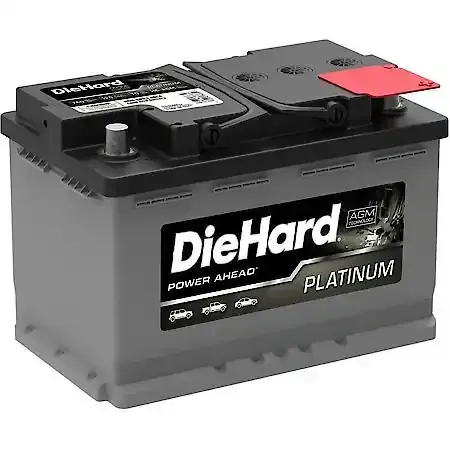
Batteries
Reliable battery options for cars, trucks, and SUVs, including everyday replacements and high-performance upgrades. Multiple brands and power levels available to meet different driving needs and climates.
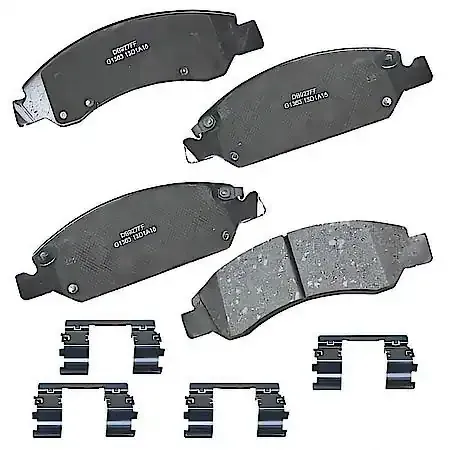
Brake Pads & Shoes
Brake pad and shoe options designed for safety, performance, and durability. Available for a wide range of vehicle makes and models, from daily drivers to heavier-duty applications.
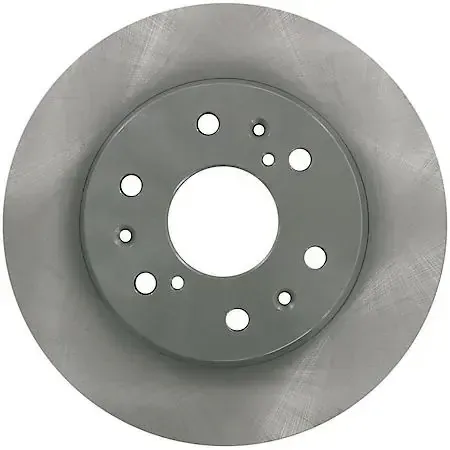
Brake Rotors & Drums
Brake rotors and drums engineered for dependable stopping power and long service life. Options include standard replacements and performance-focused designs for various vehicle types.

Winter Maintenance
Seasonal products designed to help vehicles and surfaces perform in cold weather. Includes winter safety, maintenance, and ice-management solutions for drivers and property owners.
When to Use a Catalog Overview Page
Use a Catalog Overview Page when any of the following apply:
- The client’s offering includes many products per category, making individual item listings impractical
- Individual products require technical specifications, variations, or extended descriptions that cannot be reasonably summarized at the item level
- Listing products individually would require more than 50 gallery cards
- The client provides manufacturer catalogs, price sheets, or external product libraries intended to be browsed outside the site
- The offering is better represented at a category or product-family level rather than as discrete SKUs
Catalog Overview Pages are designed to
organize and route, not to list or sell individual products directly.
Getting Started: Base Page Setup
When a Catalog Overview Page is required, a template page with preconfigured placeholder gallery cards is available in the XTRA Pages folder (page name: Catalog).
This template includes:
- A predefined page structure
- Placeholder supporting imagery
- A Photo Gallery widget configured for category-level cards
Catalog Overview Pages should not be built from scratch.
Page Type & Architectural Role
From an information architecture perspective, a Catalog Overview Page functions as a standalone utility page used to organize and present a client’s offerings at a category level, rather than item level.
- It is treated as a Tier One–level page in the navigation hierarchy.
- It is styled and built as a utility page, not a Core Page or marketing page.
- It is intended to route users to catalogs, external resources, or contact-driven next steps, not to display purchasable items directly.
Other Tier One or Core Pages may reference and link to the Catalog Overview Page through callouts or CTAs. However,
catalog content itself is never embedded directly into Category Landing Pages, Core Pages, Service Area Pages, or Geo Pages.
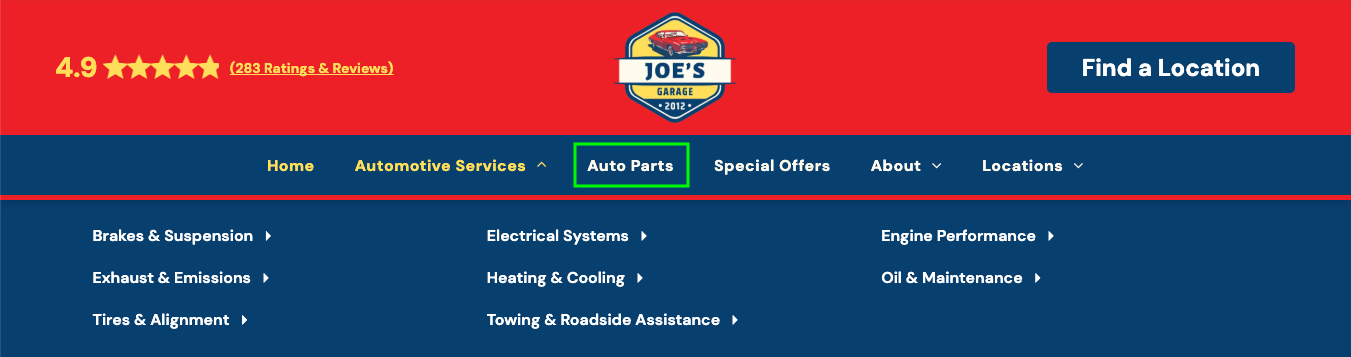
Navigation Placement
From a navigation and UX perspective, Catalog Overview Pages should be treated as primary destination pages.
- Catalog Overview Pages appear in the Global Navigation as a Tier One item.
- They should be placed adjacent to related Services or Products navigation items.
- Catalog Overview Pages should not be nested inside a mega menu or dropdown.
- They should not appear as subpages under Core Pages (e.g., About, Services, Locations).
This placement reinforces that the Catalog Overview Page is a dedicated browsing destination, not supporting or supplemental content.
Navigation Labeling
Navigation labels must describe what the customer will see, not the internal page type.
- Avoid generic or internal labels such as Catalog, Listings, or Products unless those terms are already established in the client’s language.
- Use plain-language, customer-facing category terms.
- Labels should reflect groups of offerings, not individual items or SKUs.
Example (Auto Repair Business):
- Preferred: Auto Parts
- Acceptable: Parts & Accessories
- Avoid: Catalog, Product Listings
The goal is clarity. When a user clicks the navigation label, they should immediately understand they are viewing
categories of products, not individual purchasable items.
Catalog Overview Page Navigation & CTA Examples
| Business Type | Navigation Label | What the Catalog Overview Page Contains | CTA Button Text | CTA Destination / Behavior |
|---|---|---|---|---|
| Auto Repair Shop | Auto Parts | Category-level groupings (Brakes, Batteries, Filters, Fluids) with brand context | View Catalog | Links to manufacturer site or third-party parts catalog |
| Tire Shop | Tire Brands | Tire brands and categories (All-Season, Performance, Truck) | View Tire Catalog | Links to tire manufacturer or distributor site |
| Flooring Store | Flooring Options | Carpet, hardwood, tile, and vinyl categories with style summaries | View Flooring Catalog | Links to vendor catalogs or downloadable PDFs |
| Hardware Store (Specialty) | Hardware Catalog | Decorative hardware categories (knobs, hinges, pulls, fasteners) | View Hardware Catalog | Links to PDF or manufacturer site |
| Landscaping Supply Yard | Materials Catalog | Mulch, stone, gravel, soil categories with usage descriptions | View Materials Catalog | Links to PDF, price sheet, or contact page |
| Equipment Dealer | Equipment Lines | Equipment categories by brand or function (lifts, loaders, attachments) | View Equipment Catalog | Links to third-party manufacturer site |
| Music Store | Instrument Brands | Guitars, pianos, drums, accessories grouped by brand or type | View Instrument Catalog | Links to brand catalogs or external inventory site |
| Martial Arts Studio | Training Gear | Uniforms, belts, sparring gear grouped by category | View Gear Catalog | Links to PDF or external supplier site |
| Home Builder | Home Series | Home model series or collections with high-level feature summaries | View Home Series | Links to PDF brochures or external gallery |
| Cabinet & Millwork Shop | Cabinet Styles | Cabinet door styles, finishes, and collections | View Cabinet Catalog | Links to manufacturer catalog or PDF |
| Pool Company | Pool Products | Pool equipment categories (liners, pumps, heaters) | View Product Catalog | Links to third-party vendor site |
| Window & Door Company | Product Lines | Window and door lines grouped by style or material | View Product Lines | Links to manufacturer site |
| Sign Company | Sign Types | Sign categories (vehicle wraps, monument signs, banners) | View Sign Catalog | Links to PDF or gallery page |
| Commercial Cleaning Supplier | Supply Catalog | Cleaning product categories by use case or environment | View Supply Catalog | Links to downloadable catalog |
| Safety Equipment Supplier | Safety Products | PPE categories (gloves, eyewear, harnesses) | View Safety Catalog | Links to third-party catalog |
| Agricultural Supply | Product Catalog | Feed, seed, fertilizer categories with seasonal context | View Product Catalog | Links to PDF or supplier site |
Title & Meta Description Requirements (Catalog)
The
Catalog Overview Page must include a page title and meta description that clearly reflect the
product category or grouping being represented, not individual items.
Titles and meta descriptions must use the same public-facing terminology as the
page name, navigation label, and URL slug.
Page Title Requirements
- Must include the catalog category name, not an item-level term.
- Should describe the type of products offered at a high level (e.g., “Auto Parts,” not “Tire Inventory”).
- Examples
- Auto Parts Catalog | Business Name
- Landscaping Materials | Business Name
- Brakes & Suspension | Business Name
Meta Description Requirements
- Must briefly describe the overall category or range of products, not specific SKUs.
- May reference brands, types, or use cases, but must avoid item-level detail.
- Must include a natural lead-in to next steps (view catalog, contact, request info).
- When space permits, meta descriptions should include a location-based cue (e.g., city, region, or “visit us”) to reinforce local relevance and support SEO for brick-and-mortar businesses.
- Should not imply
full ecommerce unless explicitly supported
- Examples
- Title: Auto Parts | Pete's Parts
- Meta Description:
View our auto parts catalog, including brakes, batteries, filters, and other essential components. Contact Pete’s Parts in the Tampa area for availability, compatibility questions, or ordering details.
- Title: Flooring & Carpet | Big Marty's Carpet and Flooring
- Meta Description: View our flooring and carpet catalog, including carpet styles, hardwood, tile, and other flooring options. Visit Big Marty in the Kirkwood area or contact us to request samples, pricing, or installation details.
Category Page Structure Overview
A Catalog Overview Page follows a simple, consistent structure:
- Category Page Introduction
A brief introductory section that provides high-level context about the product category or offering. - Category Gallery
A Photo Gallery widget displaying category-level cards that route users to catalogs, external resources, or next steps.
This structure is fixed. Content and imagery may be updated, but the overall page layout should not be altered.
Category Page Introduction Requirements
Each Catalog Overview Page must include:
- An H2 introductory headline
- A short introductory paragraph describing the overall offering
- One supporting images that provide category-level context
- Represent the overall category offering, not individual products
- May be client-supplied or stock photography
Catalog Overview (Gallery) Setup
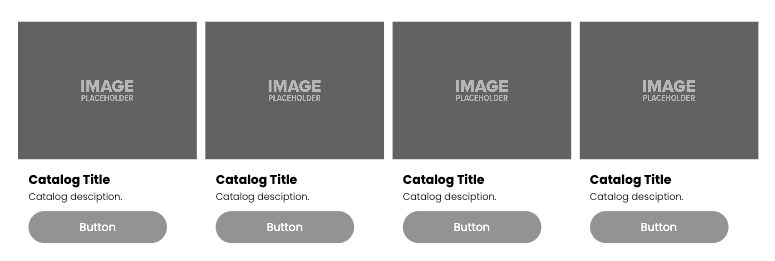
Catalog Overview Pages use a preconfigured Photo Gallery widget to present category-level cards.
The default setup includes 24 placeholder gallery cards to provide a clear starting point.
Each placeholder card includes:
- A placeholder image labeled “IMAGE PLACEHOLDER”
- A category title
- Short descriptive copy
- A visible CTA button (text only; destination may be set later)
During the copy phase, writers may update:
- Category titles
- Descriptive copy
- CTA button text
If additional cards are required, writers must first add a
new placeholder image to create a new gallery card. Once the image is added, they may then enter:
- The category title
- Short descriptive copy
- CTA button text
Note: Gallery cards cannot be duplicated or copied. Each card must be created and completed individually.
During production, build teams replace placeholder images with final client-provided imagery. Any unused placeholder cards may be removed as needed.
Category Card Format (Gallery Items)
Each gallery card on a Catalog Overview Page represents one product category, not an individual product or SKU.
Each category card may include:
- One image
- One category name (title)
- One short description
- One CTA
Category descriptions should:
- Describe the types of products, brands, or options available within the category
- Remain high-level and non-technical
- Set expectations without listing item-level detail
Category cards must not be used to:
- List individual products
- Display SKUs, variants, or configurations
- Simulate item-level inventory listings
- Include pricing or purchasing detail
Category cards are intended to route users to
external catalogs, supporting documents, or next steps, not to function as standalone product listings.
CTA Requirements
What the CTA Button Represents
On a Catalog Overview Page, the CTA is not transactional. It exists to route users to external or supporting resources where full product detail lives.
Each category card must include
one CTA.
Allowed CTA Destinations
The CTA button may link to any of the following:
- Client-provided downloadable files
- PDF catalogs
- Sales flyers
- Spec sheets
- Word documents
- Excel files
- Third-party hosted documents
- Google Docs
- Google Sheets
- Other externally hosted spreadsheets or documents
- Third-party inventory or product websites
- Manufacturer catalogs
- Supplier product listings
- Partner inventory systems
- Client contact or inquiry destinations
- Contact Us page
- Request Info / Request Quote form
- Click-to-call (when appropriate)
Third-Party Destination Clarity
When a CTA links to a third-party site or external system, this must be clear in intent, either through:
- Button text (e.g., “View Manufacturer Catalog”)
- Supporting description copy
- Or contextual expectation set by the page
The goal is
no surprise handoffs.
CTA Button Text Guidelines
CTA text should be:
- Action-oriented but non-transactional
- Clear about what happens next
- Aligned with the destination type
- Common examples:
- View Catalog
- View Full Catalog
- Download Catalog
- View Product Line
- View Manufacturer Site
- Request Information
- Contact for Details
- Avoid:
- Buy Now
- Add to Cart
- Shop Now (unless the destination is explicitly an external ecommerce system and that expectation is clear)
CTA Constraints
- One CTA per category card
- No multiple buttons per card
- No on-site ecommerce behavior
- No implication that products can be purchased directly on the Hibu site